Today we’re going to be going through how to effectively track traffic to your website.
One of the big issues, when you’re trying to track your website traffic, is that the internet is full of ways that the connection between the user and your asset (website) is often broken. Either by security or by the modality – if someone clicks a link from within a PDF document it will be shown in your Google analytics as a Direct – not set. Wouldn’t you rather see that as PDF-December, that way you know your PDF is working and driving traffic to your website.
That’s where UTM links come into play. UTM’s give you the power the track your website traffic by tagging any links clicked with specific parameters.
The Parameters
So there are 3 core parameters we’re going to use for this;
- Source
- Medium
- Campaign
Let’s go through them.
Source
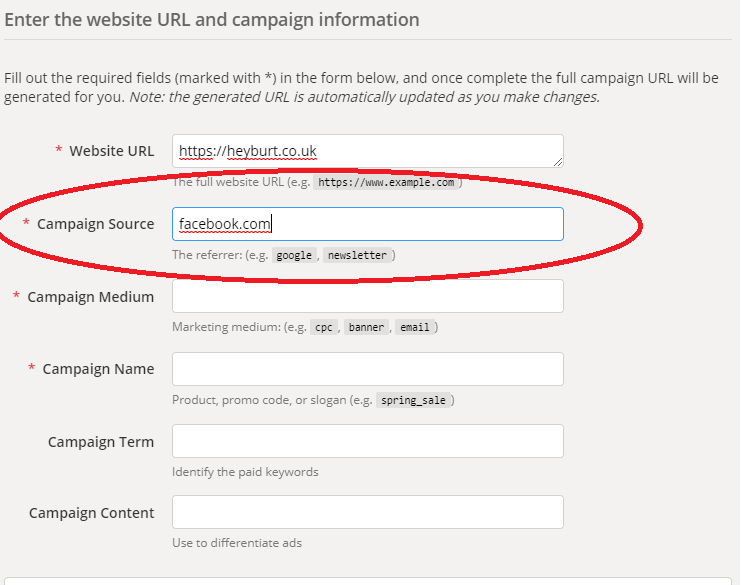
This is literally where the traffic comes from. For example facebook.com. Without going too deep, this is a signal for Google Analytics to place this piece of traffic into the Social channel. Meaning you’ll know if anyone has come from a Facebook post to your website. This is true if they come from m.facebook (mobile) or regular facebook.com
Medium
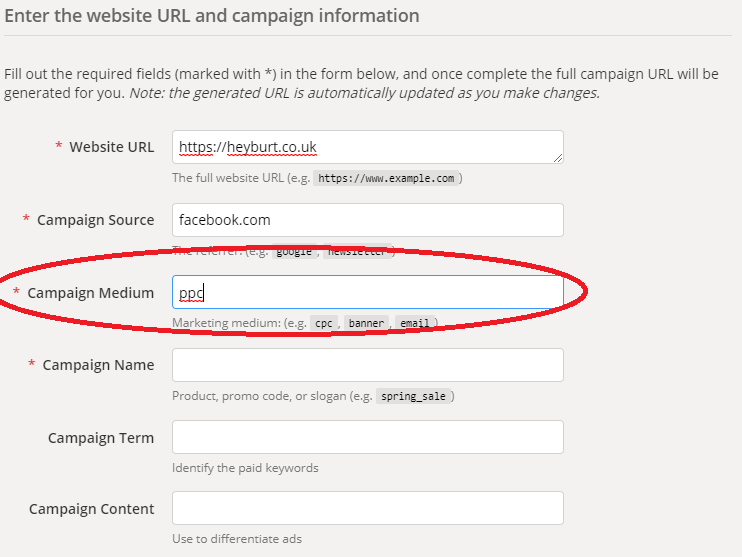
This tracks what TYPE of traffic it was. For example PPC versus Organic traffic. PPC is pay per click so facebook.com adverts. Organic is regular posting on your facebook page.
Campaign
The specific campaign you are running. So if you were running two different Facebook adverts it might look like this:
- facebook.com-ppc-advert01
- facebook.com-ppc-advert02
OR
- facebook.com-ppc-manwithbag
- facebook.com-ppc-womanwithbag
With this in place we’d be able to properly define which advert was actually performing better in terms of bringing people to your website. When you combine this with Goals, you’ll also be able to see which one of the above adverts were more successful AND who purchased or didn’t purchase.
So how do we create them
Fortunately we’re not the first people to think about this and Google has a great tool called the Campaign URL Builder: https://ga-dev-tools.appspot.com/campaign-url-builder/
This free tool allows you to enter your;
- Website
- Source
- Medium
- Campaign
- Term
- Content
In nice easy boxes and gives you a complete link. So let’s run through an example;
Nothing could be simpler.
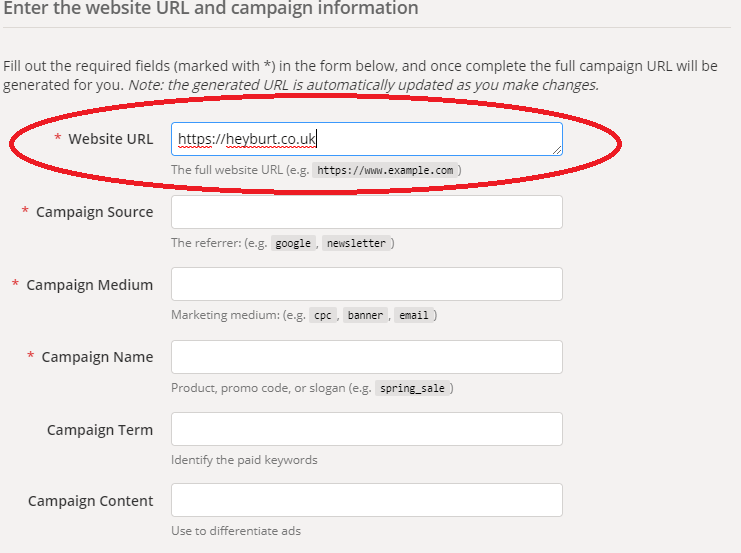
So we start by entering our Website address into the Website URL field:
Then we add our source (facebook.com)
Now our Medium (ppc)
Finally our Campaign

What we then get, as a result, is our full UTM link

So written it is like this:
Step 1: https://heyburt.co.uk/
Step 2: &utm_source=facebook.com
Step 3: &utm_medium=ppc
Step 4: &utm_campaign=advert01
Finished Link: https://heyburt.co.uk/&utm_source=facebook.com&utm_medium=ppc&utm_campaign=advert01
Using links like this will enable you to be able to directly see where traffic is coming from and which platforms/resources are performing better for you.

So in order to make sure you’re able to track traffic to your website effectively. I would always 100% suggest using a UTM in any situation where you can (which is most). It isn’t that Google Analytics doesn’t work, it’s just sometimes the information can lost!
